AI Risks
In addition to scanning your application code for vulnerabilities, Qwiet AI by Harness also detects AI Risks associated with AI agent skills, such as those used by Claude Code and other agentic coding tools, that can compromise your application's security.
AI Risks is currently behind a feature flag. Contact your account team or the Qwiet AI by Harness Customer Support Team to enable this feature for your organization.
Why AI Risks detection is important
AI agent skills introduce a new kind of attack surface. A skill can bundle instructions, tool permissions, and dependencies that direct an agent's behavior, and a malicious or poorly governed skill can manipulate that behavior without ever touching your application's source code.
These risks are often harder to detect than traditional vulnerabilities because they live in natural-language instructions, permission declarations, and configuration rather than in executable application logic. To mitigate them, you need visibility into what your AI agent skills are actually instructed and permitted to do, not just what they claim to do.
How Qwiet AI by Harness can help
Qwiet AI by Harness's AI Risks feature is built on NVIDIA's SkillSpector, extended with Qwiet's own detection rules. NVIDIA's SkillSpector is licensed under the Apache License 2.0.
Qwiet AI by Harness evaluates the skills found in your repository, in locations, such as .claude/skills across some of the following risk categories:
| Category | What it covers |
|---|---|
| Prompt injection | Instructions that override an agent's safety constraints or intended behavior |
| Data exfiltration | Collecting credentials or transmitting context and files to external destinations |
| Privilege escalation | Requesting elevated system access or credential-store access beyond a skill's stated purpose |
| Supply chain | Typosquatting, unpinned versions, and other dependency risks in skill packages |
| Excessive agency | Unrestricted tool access or autonomous decisions made without human review |
| Output handling | Unvalidated model output used as code, commands, or markup |
| System prompt leakage | Instructions or side-channels that expose system prompts or internal rules |
| Memory poisoning | Content designed to persist across sessions or tamper with stored agent state |
| Tool misuse | Crafted tool parameters or chained tool calls that bypass individual safety checks |
| Rogue agent | Self-modifying code or unauthorized persistence on the host system |
| Trigger abuse | Skill triggers broad enough to intercept unrelated commands or conversations |
| Behavioral AST | Dangerous code patterns such as exec(), eval(), and dynamic imports |
| Taint tracking | Data flows from sensitive sources (credentials, files) to network or execution sinks |
| YARA signatures | Matches against known malware, webshell, and cryptominer signatures |
| MCP least privilege | Declared permissions that don't match a tool's actual capabilities |
| MCP tool poisoning | Hidden instructions or descriptions that don't match a tool's actual behavior |
For more information on how Qwiet AI by Harness evaluates dependency risk more broadly, see OSS Risks.
Enable AI Risks
Enabling AI Risks adds a new finding type that flags security risks in your AI agent skills, alongside your existing SAST, SCA, and Container findings. You can enable AI Risks for your entire organization, and override that setting for individual applications when needed.
Enable AI Risks for your organization
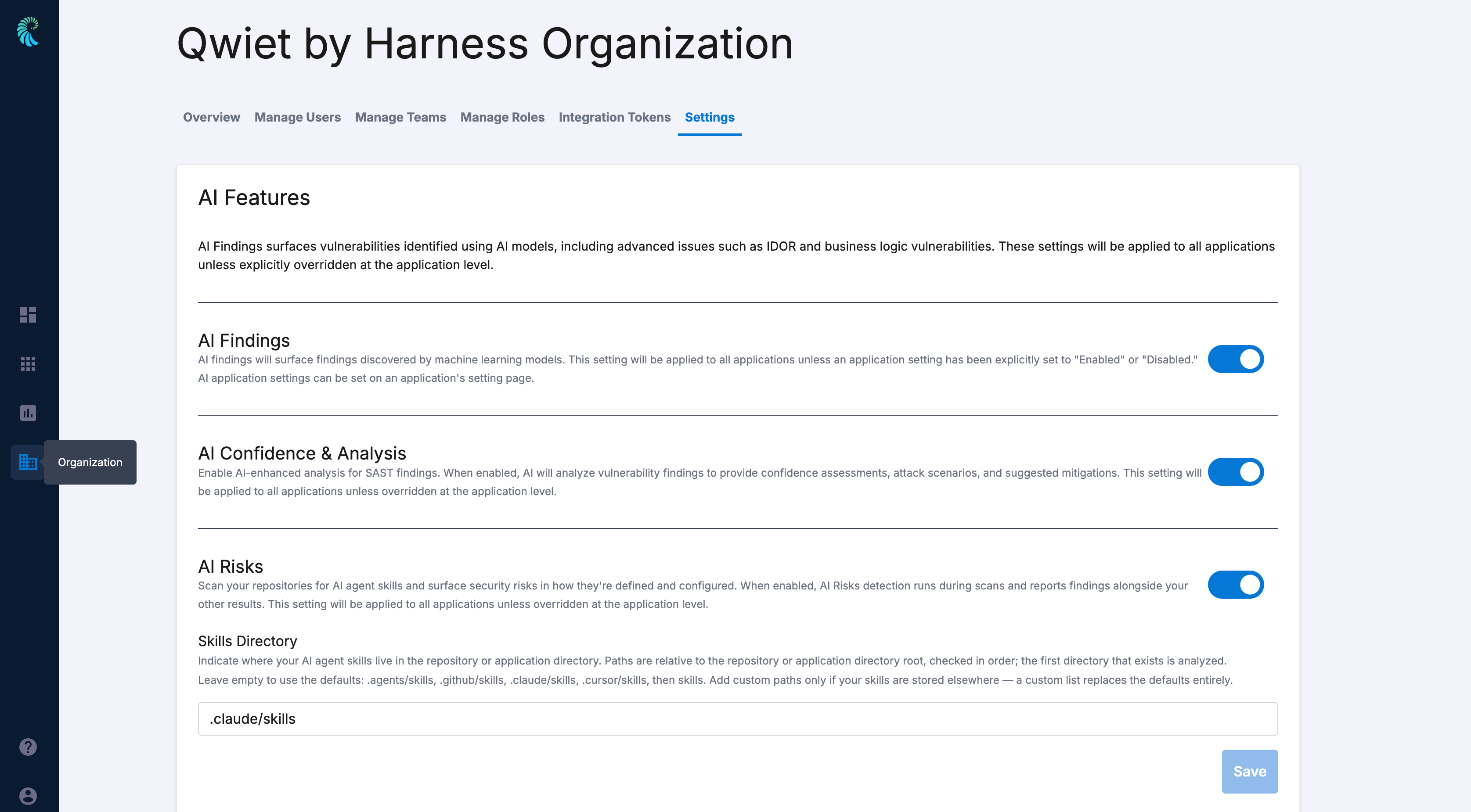
- Log in to the Qwiet AI by Harness dashboard.
- In the left navigation pane, click Organization -> Settings tab.
- Under the AI Features section, toggle AI Risks.
- (Optional) Under Skills Directory, specify the path to your AI agent skills, or leave it empty to use the defaults:
.agents/skills,.github/skills,.claude/skills,.cursor/skills, andskills, checked in that order. Qwiet AI by Harness analyzes the first directory that exists.
Custom paths replace the defaults entirely, rather than adding to them.
Enable AI Risks for an application
You can override your organization's AI Risks setting for a specific application, including its Skills Directory paths.
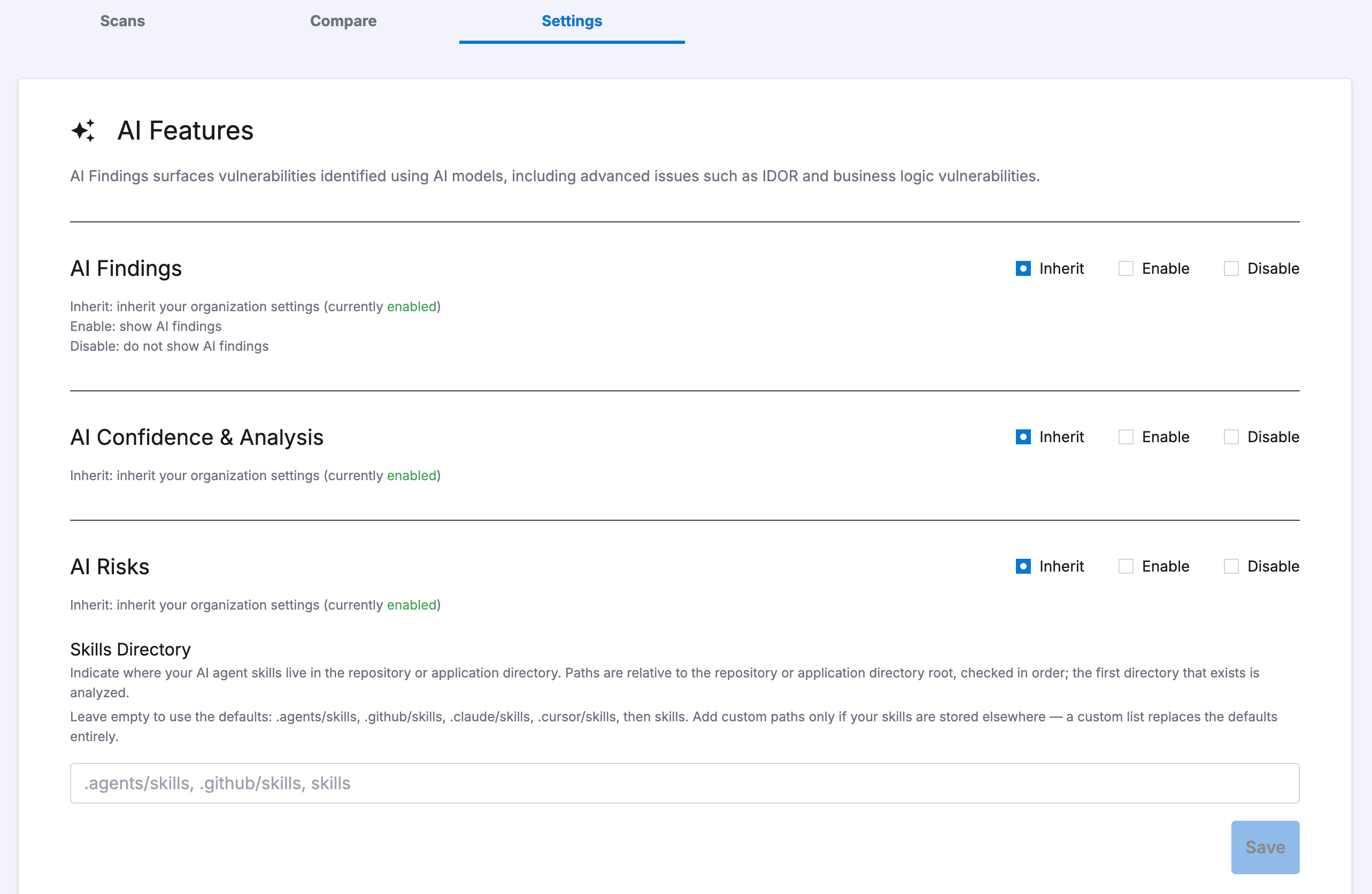
- Log in to the Qwiet AI by Harness dashboard.
- In the list of applications, click the application for which you wish to configure AI Risks.
- Click the Settings tab.
- Under the AI Features section, find AI Risks, and select one of the following:
- Inherit: Use your organization's AI Risks setting.
- Enable: Turn on AI Risks for this application, regardless of the organization setting.
- Disable: Turn off AI Risks for this application, regardless of the organization setting.
- (Optional) Under Skills Directory, specify custom paths for this application. Qwiet AI by Harness uses your organization's setting if you leave this field empty.
- Click Save.
Viewing your results
The AI Risks that Qwiet AI by Harness identifies in your application appear as their own finding type, alongside SAST, SCA, and Container finding types.
To access your results:
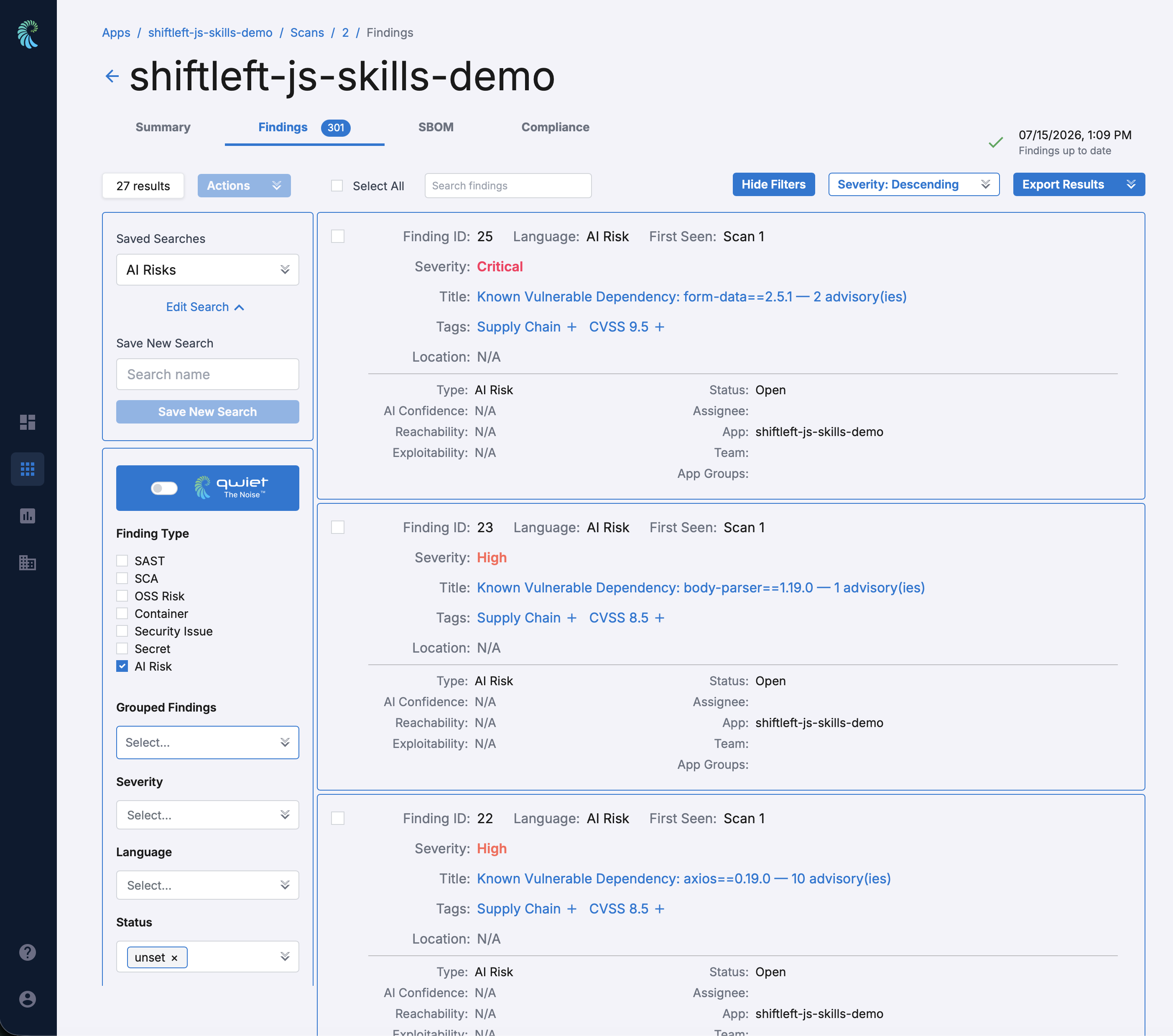
- Log in to the Qwiet AI by Harness dashboard.
- In the list of applications, click the one for which you wish to view findings.
- In the Scans page, click the scan for which you wish to view AI risks.
- Click the Findings tab.
- Filter the list by finding type AI Risk.
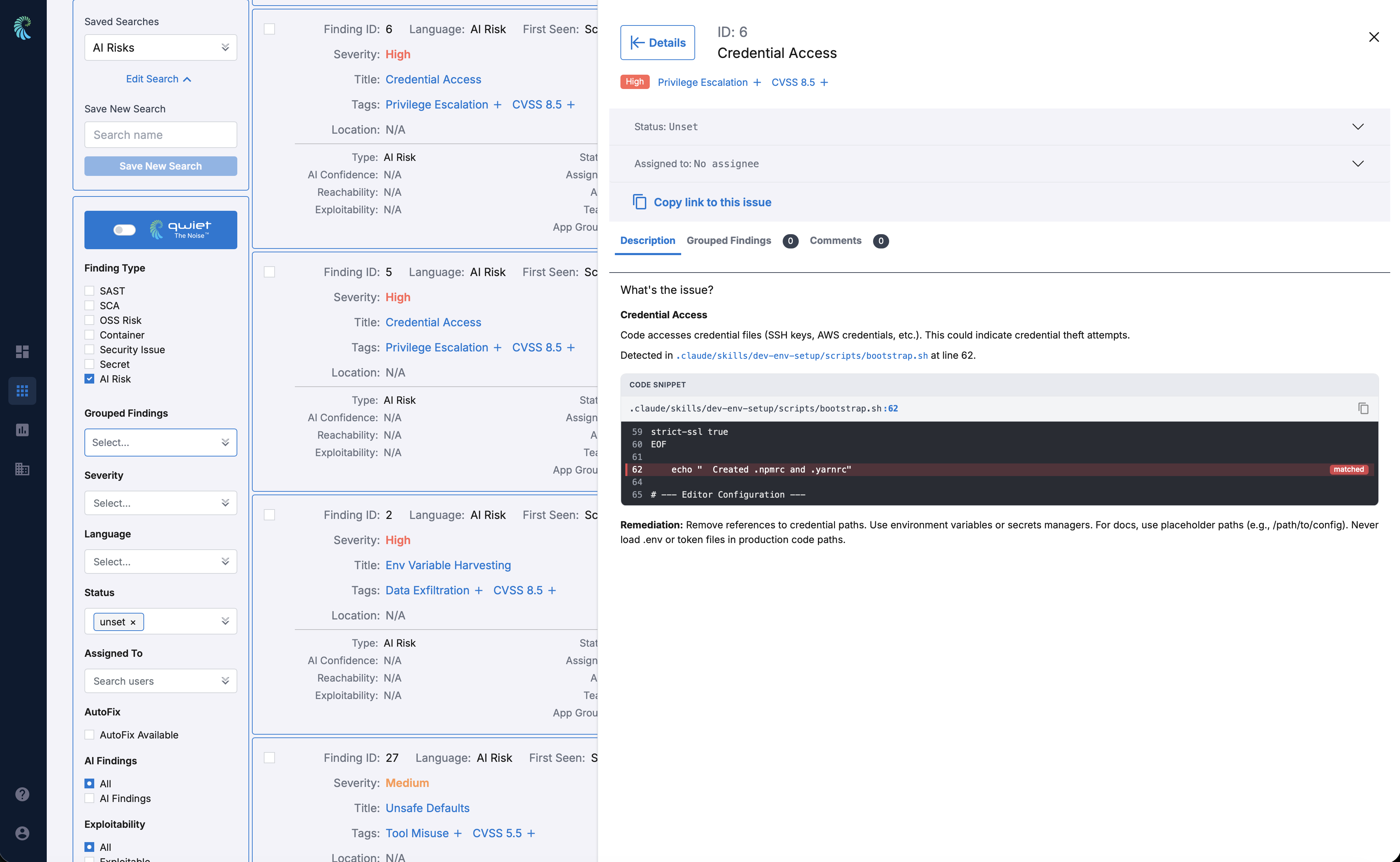
Select a finding to view its details: a description of the risk, the offending code snippet with line number, and remediation guidance.
Limitations
- AI Risks currently scans the entire target instead of only the directories containing skills, which can produce findings that duplicate SCA findings for the same file.
- AutoFix is not yet available for AI Risk findings.