Cursor
The Harness SAST and SCA extension for Cursor enables you to shift security further left by identifying secrets and vulnerabilities as you write code, helping you resolve issues before they become backlog tickets.
Features
Harness SAST and SCA for Cursor provides:
- SAST: Advanced static analysis to identify security vulnerabilities in your code
- SCA (Software Composition Analysis): Dependency vulnerability scanning to detect vulnerable open-source packages
- Secrets Detection: Pre-commit checks to identify secrets, API keys, and credentials before they're committed
- Real-time Analysis: Get instant feedback on security issues as you code
- Integration with Qwiet AI by Harness: View detailed results and manage findings in the
Qwiet AI by Harnessdashboard
Language support and requirements
Harness SAST and SCA for Cursor currently:
- Supports the analysis of JavaScript, TypeScript, Python, C/C++, C#, Go, Java, PHP, Ruby.
- Requires the use of a workstation running Linux, macOS, or Windows.
Dependencies
Before proceeding with this extension, ensure that your workstation meets the prerequisites for using Harness SAST and SCA.
The extension will automatically download and install the latest version of the Harness SAST and SCA CLI for you. This will not affect the system version of the CLI (if you have it installed); these two versions will be maintained in parallel.
Ensure that you've added
slandnodeorpythonto your systemPATHvariable.
Installation
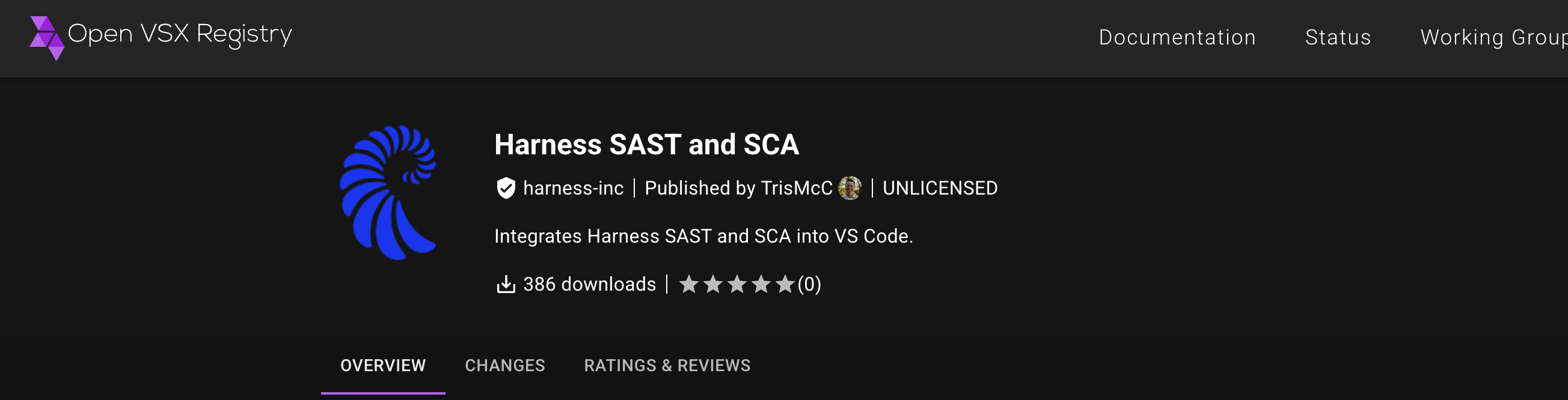
To install Harness SAST and SCA for Cursor, obtain the extension by downloading it from the Open VSX Registry (Cursor is compatible with VS Code extensions).
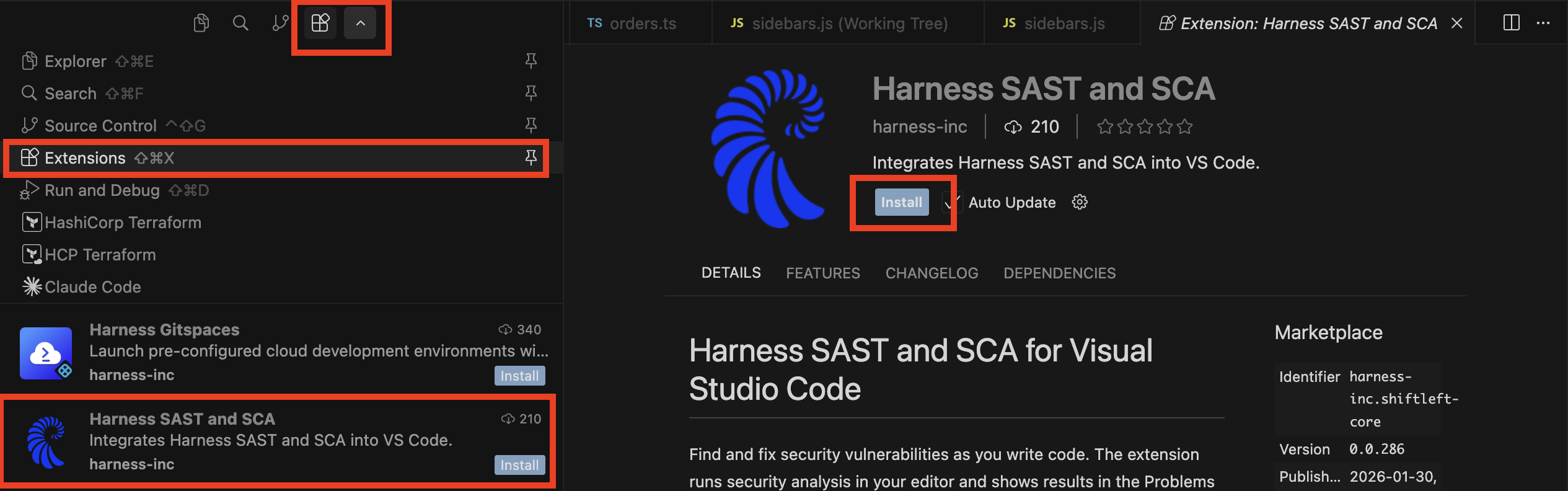
Alternatively, you can download it from Cursor by opening the Extensions pane, search for Harness SAST and SCA and click on Install.
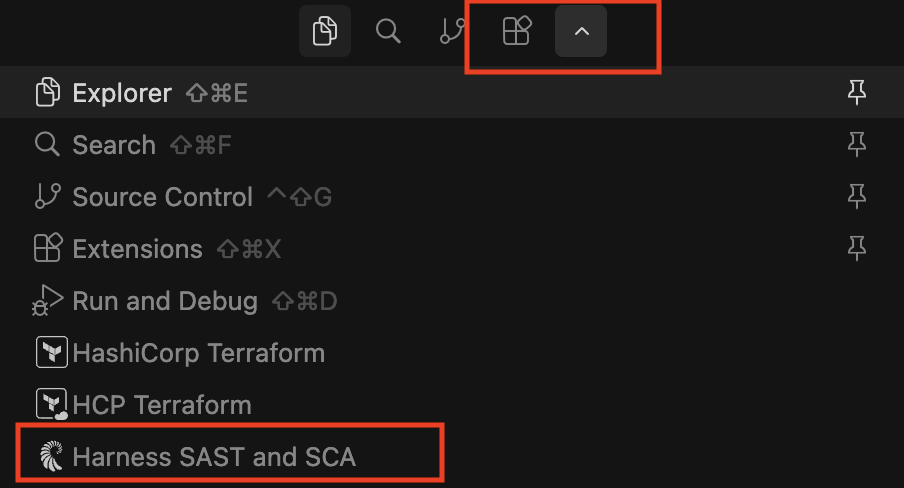
To Open the Harness SAST and SCA extension, click the arrow box next to the extension icon, and select the Harness SAST and SCA icon.
Usage
Step 1: Authenticate your machine
The Harness SAST and SCA extension for Cursor will leverage the information contained in your local configuration file (created when you installed the Harness SAST and SCA CLI) to authenticate your machine.
To authenticate your newly installed extension:
-
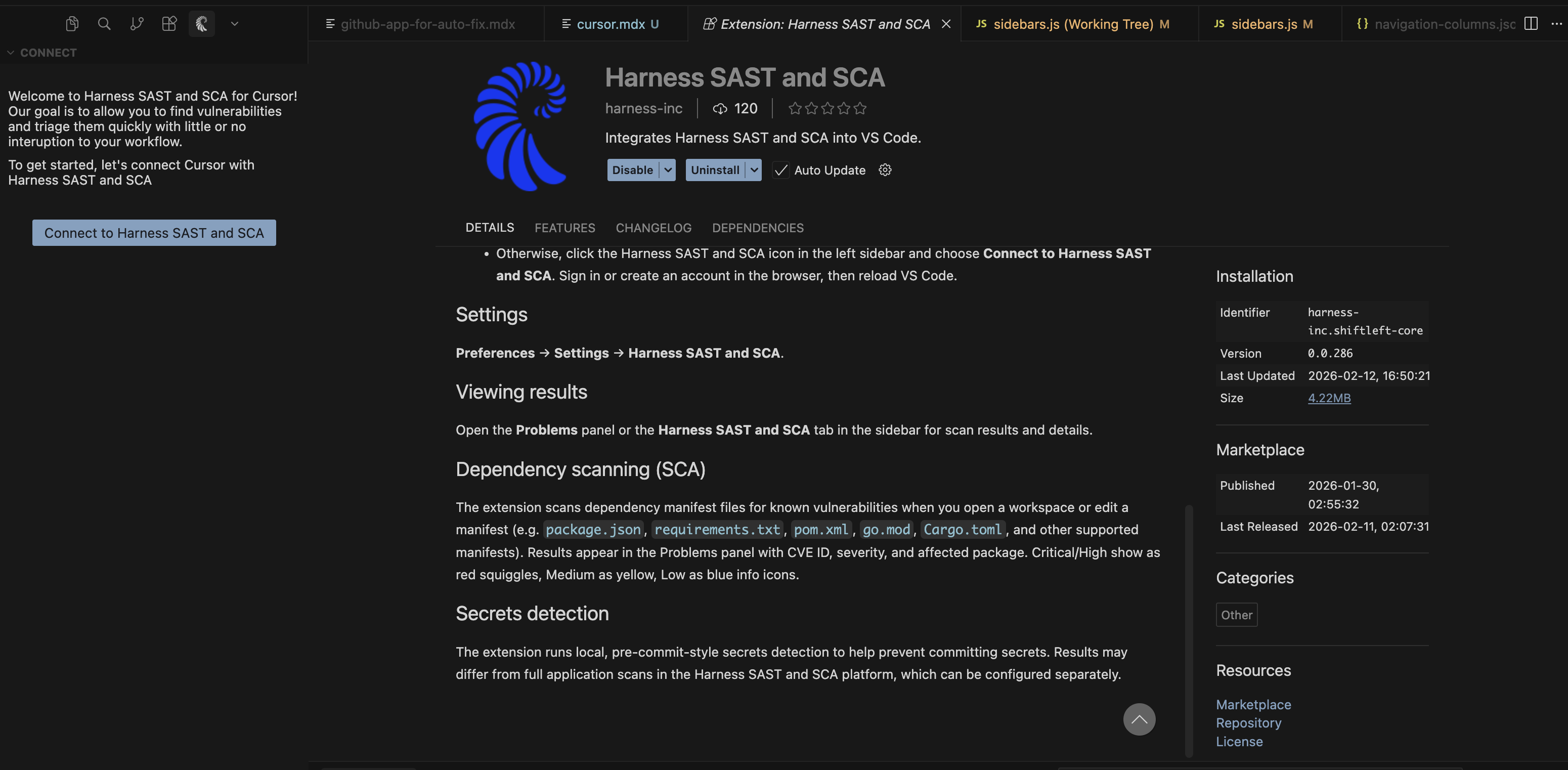
Click the Connect to Harness SAST and SCA button in your left-hand navigation bar to begin the process of authenticating with Qwiet AI by Harness.
-
Log into Qwiet AI by Harness when prompted (if necessary, create an account first).
-
Return to Cursor and verify that your organization and user information are displayed in the topmost window of the left navigation bar.
Step 2: Open your project
-
In Cursor, open the project you want scanned by Harness SAST and SCA.
-
Click the Harness SAST and SCA icon in the left-hand navigation bar to launch the extension.
-
If prompted, authenticate with Qwiet AI by Harness (if you're already authenticated, you'll see your User Profile information displayed instead).
Step 3: Access the extension's functionality via the command palette
You can find all of the extension's functionality under the Command Palette (open using Command + Shift + P for macOS or Control + Shift + P for Linux/Windows):
| Option | Description |
|---|---|
| Analyze | Analyze your project |
| Connect | Connect your extension with your Qwiet AI by Harness account and organization |
| Contact Support | Launch your email client to contact Qwiet AI by Harness Support |
| Fetch Latest Scan Results | Get latest scan results |
| Focus on Assigned to Me View | Bring the Assigned to Me view into focus |
| Focus on Help & Support View | Bring the Help & Support view into focus |
| Focus on OSS Vulnerabilities View | Bring the OSS Vulnerabilities view into focus |
| Focus on Project Configuration View | Bring the Focus on Project Configuration view into focus |
| Focus on Secrets View | Bring the Secrets view into focus |
| Focus on User Profile View | Bring the User Profile view into focus |
| Focus on Vulnerabilities View | Bring the Vulnerabilities view into focus |
| Open Documentation | Open the documentation for the extension in a new browser window |
| Open Project Configuration | Open the project configuration/settings page |
| Pre Commit Check | Identify secrets present in your project |
| View: Show Harness SAST and SCA | Brings the extension-related windows into focus |
Real time SCA and Secrets Detection
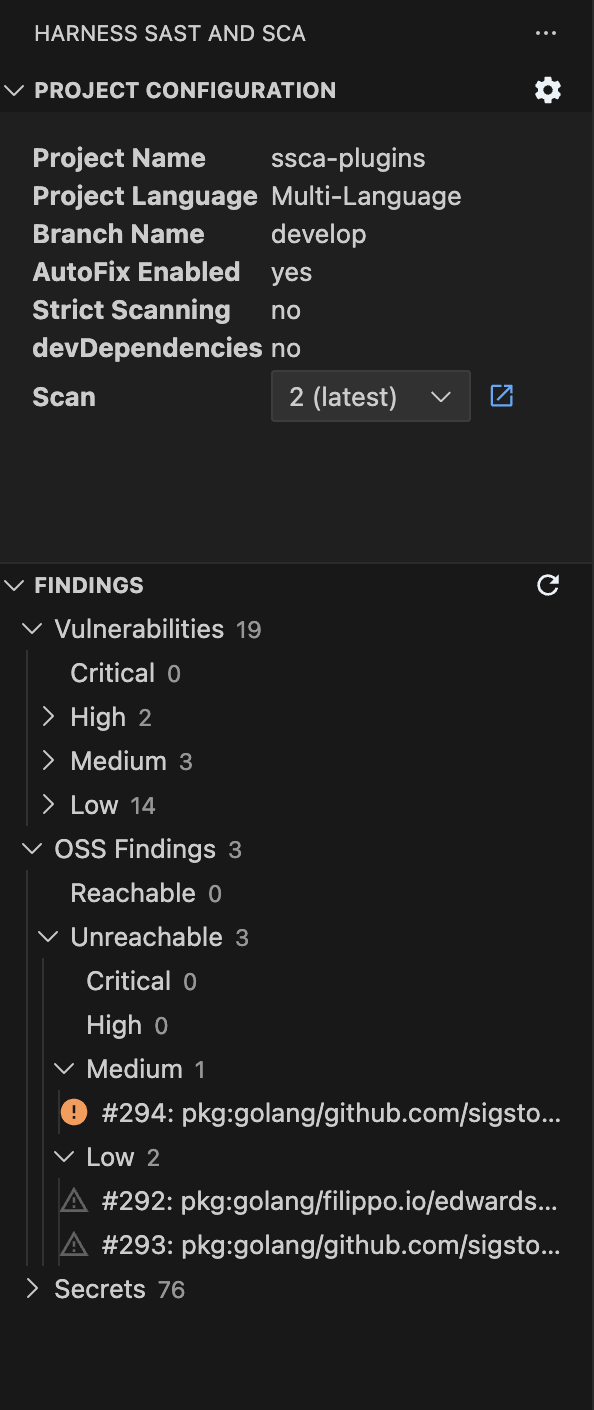
The Harness SAST and SCA extension enables developers to run SCA and secrets scans directly within Cursor and view detailed results immediately in the code editor. The SCA scan identifies the open-source dependencies used in your project and highlights known security vulnerabilities associated with those packages. SCA findings are displayed in the Problems panel with severity level, CVE ID, affected package details and also the recommended package version to update
In addition, the extension performs local secrets detection to identify hardcoded credentials, API keys, and tokens in your code. Issues are flagged instantly, allowing you to remediate them before committing changes.

From the side tab, you can view vulnerabilities by severity (Critical, High, Medium, Low) and also see OSS findings categorized as Reachable or Unreachable, along with their respective severity levels.
Secure AI Coding
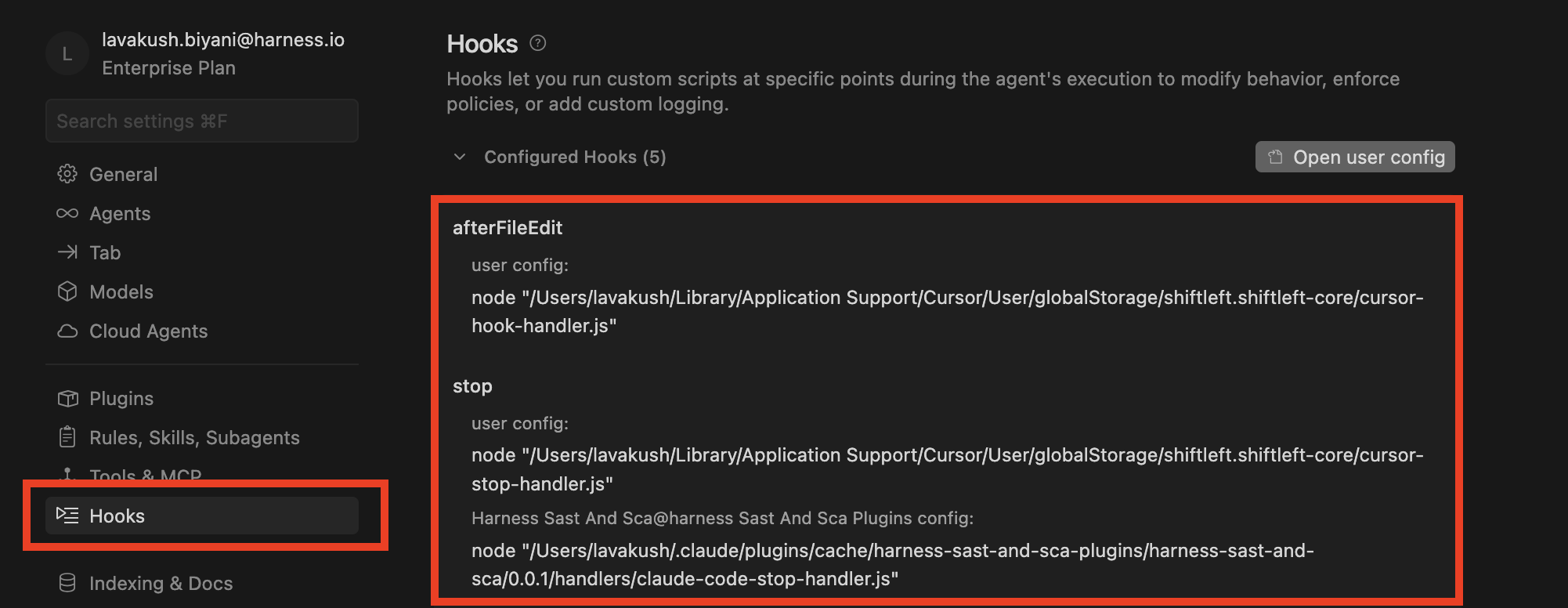
When the Harness SAST and SCA extension is installed, it automatically enables hooks that bring real-time security into your workflow. This ensures that all AI-generated code is continuously scanned, validated, and remediated as you work. For more information, you can check the Secure AI Coding docs.
- You can view the configured hooks in Cursor by navigating to Cursor Settings and select Hooks.
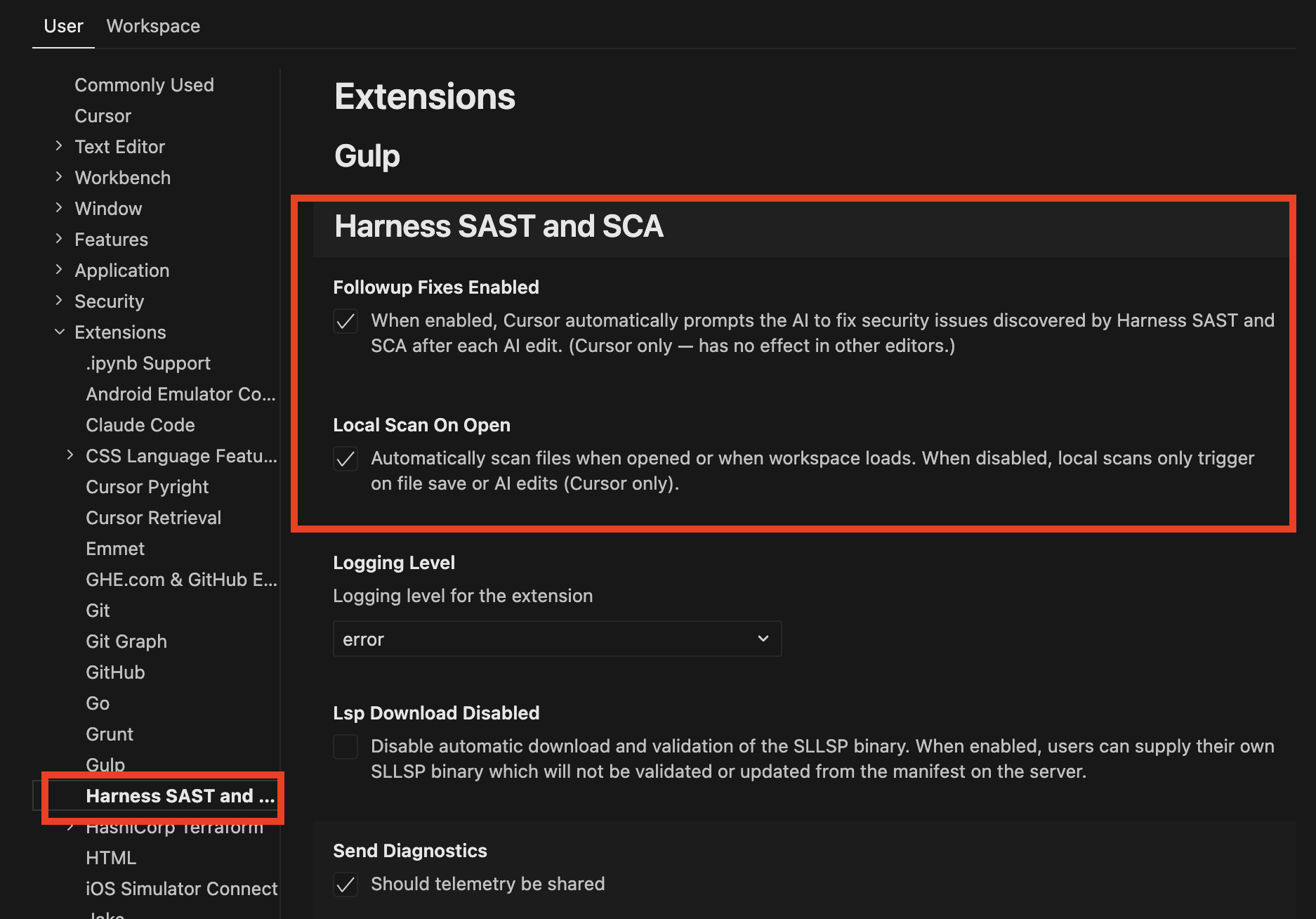
To access the settings below, open Cursor, navigate to Settings, select Extensions, and choose Harness SAST and SCA.
- Followup Fixes: Automatically prompts the AI to fix security issues detected after each AI-generated code change.
- Local Scan On Open: Automatically scans files for security issues when they are opened or when the workspace loads. When disabled,local scans only trigger on file save or AI edits.
Supported Languages: Java, JavaScript / TypeScrypt, Python, C, PHP
Additional Details
This integration is actively supported but should be considered beta software. It is still experimental and may change or break at any time.
Example: Run the pre-commit check for secrets
To run the pre-commit check that scans your project for secrets (passwords, API access keys, and other credentials that should not be publicly exposed) that you may inadvertently commit to your repository:
-
Open the project you're interested in scanning.
-
Open the Command Palette (use Command + Shift + P for macOS or Control + Shift + P for Linux/Windows), search for Harness SAST and SCA: Pre Commit Check, and select this option to begin the analysis.
-
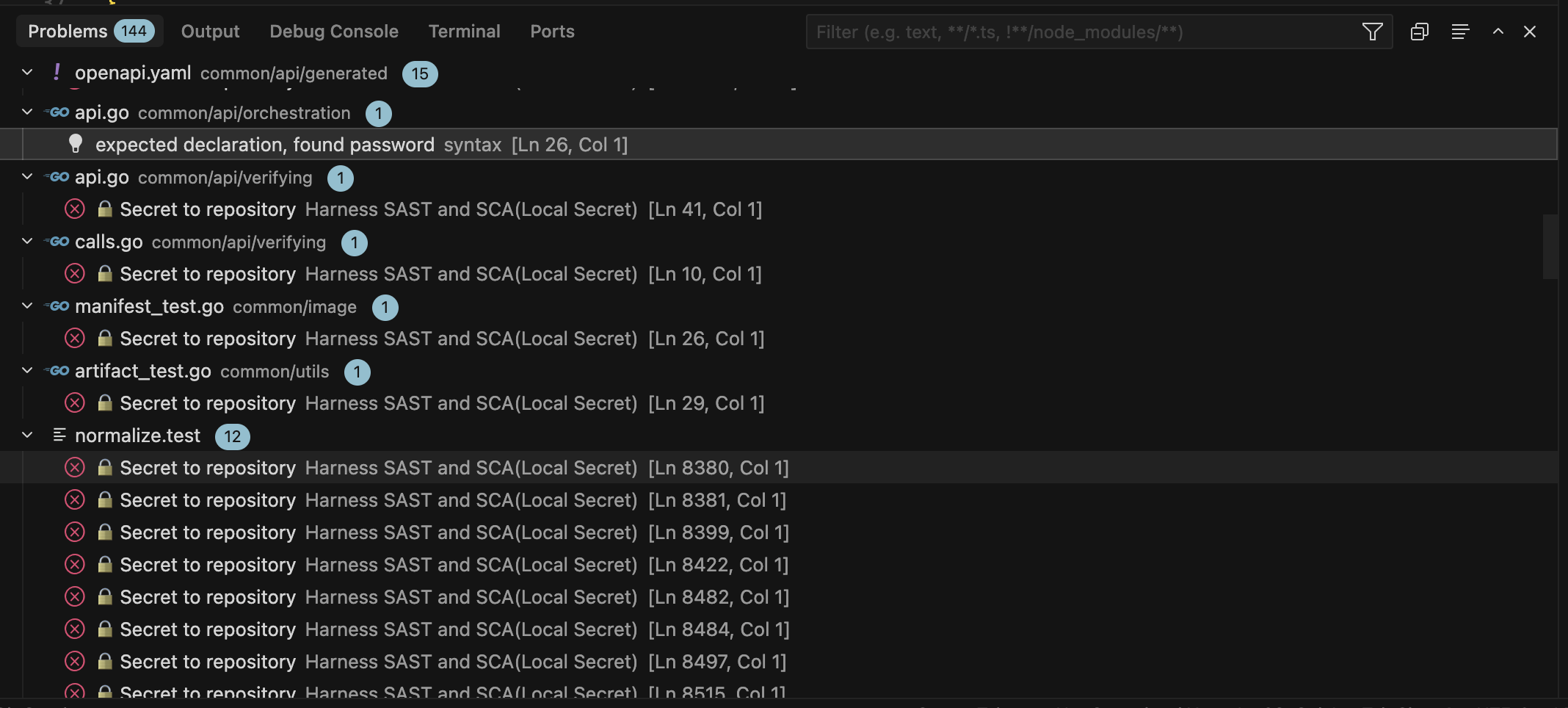
Your results will appear under Problems. If you don't see this, open it with either Command + Shift + M (macOS) or Control + Shift + M (Linux/Windows).
-
To see where the secret appears, click on the result to go to the specific code location.
FAQ
- Should I enable "Auto-update" feature on the Cursor Extension?
Ans: "Auto-Update" is preferred, as it keeps the extension up to date. We recommend restarting Cursor every time the extension is updated.
- Scans on Cursor are not working. How do I troubleshoot?
Ans: Validate if you are using the latest version of Cursor and Harness SAST and SCA Extension from marketplace. Also try restarting your Cursor application. If you still have issues with the scan operation, contact Qwiet AI by Harness Customer Success Team for assistance.
Help
Contact the Qwiet AI by Harness Customer Success Team for assistance.